Setting Up the Onboarding Funnel
The first login a member makes to your site is important. They register, they log in, and then what? On most sites: a dashboard full of things to do, no order to do them in, and a support email waiting to happen. The member who never picked a password, filled in the profile the site needs, or found the course they bought is the member who cancels next month, and the cancellation always looks mysterious in your numbers.
The Onboarding Funnel replaces that first-login free-for-all with a guided path. The member lands in a sandboxed corner of your site dedicated to setup. Each step is a gate: complete it, the next one unlocks. When the last gate opens, the full site is theirs, and they arrive configured instead of confused.
This guide wires it up end to end. It pairs naturally with Provisioning New Members: that guide gets the member logged in for the first time, and this one decides what happens next.
1. Build the funnel page
Create a dedicated page: "Welcome, let's set you up" or whatever fits your voice. It must contain the password form:
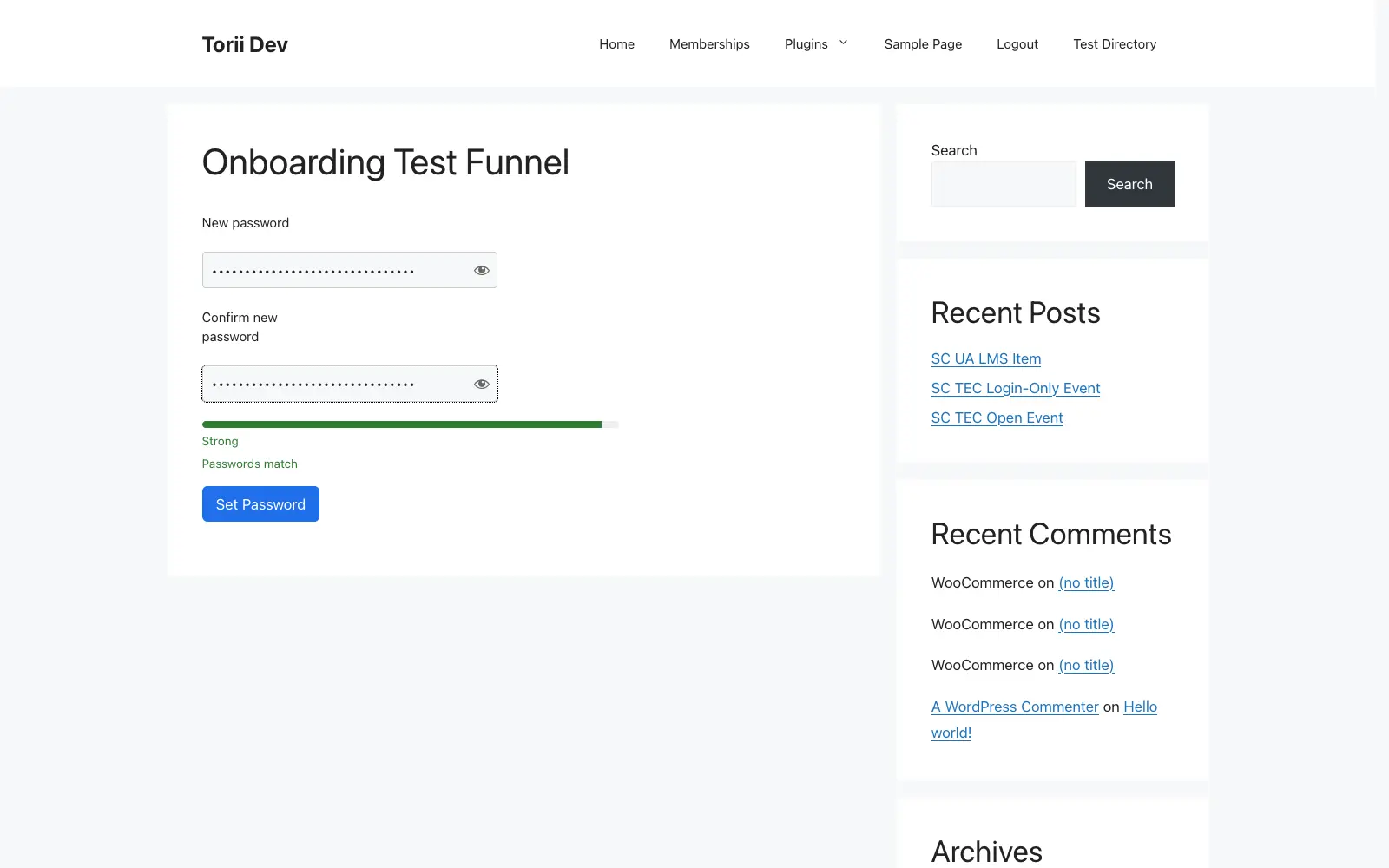
[memb_set_password redirect_to="/welcome-video/"]That shortcode is gate one. It renders the self-guided password form (live strength meter, match feedback, a submit button that stays disabled until the password is strong and confirmed), and setting a password is what the module counts as setup complete. The redirect_to sends the member onward when they finish; point it at whatever the "you're in" moment is on your site.
Three requirements the page must meet, because the module checks all of them:
- Published. A draft funnel page is no funnel at all.
- Not password-protected. The member arriving by magic link has no password yet; a protected funnel page locks them out of their own setup.
- Dedicated. Don't reuse your home page or login page; the member needs to land somewhere whose only job is setup.
2. Turn on the module and point it at the page
Under Membership → Onboarding (enable the module first if it's off), set the Funnel Page to the page you just built. The settings screen shows a live status checklist: the page exists, is published, contains the password shortcode, and isn't protected. All four green and the funnel is armed.
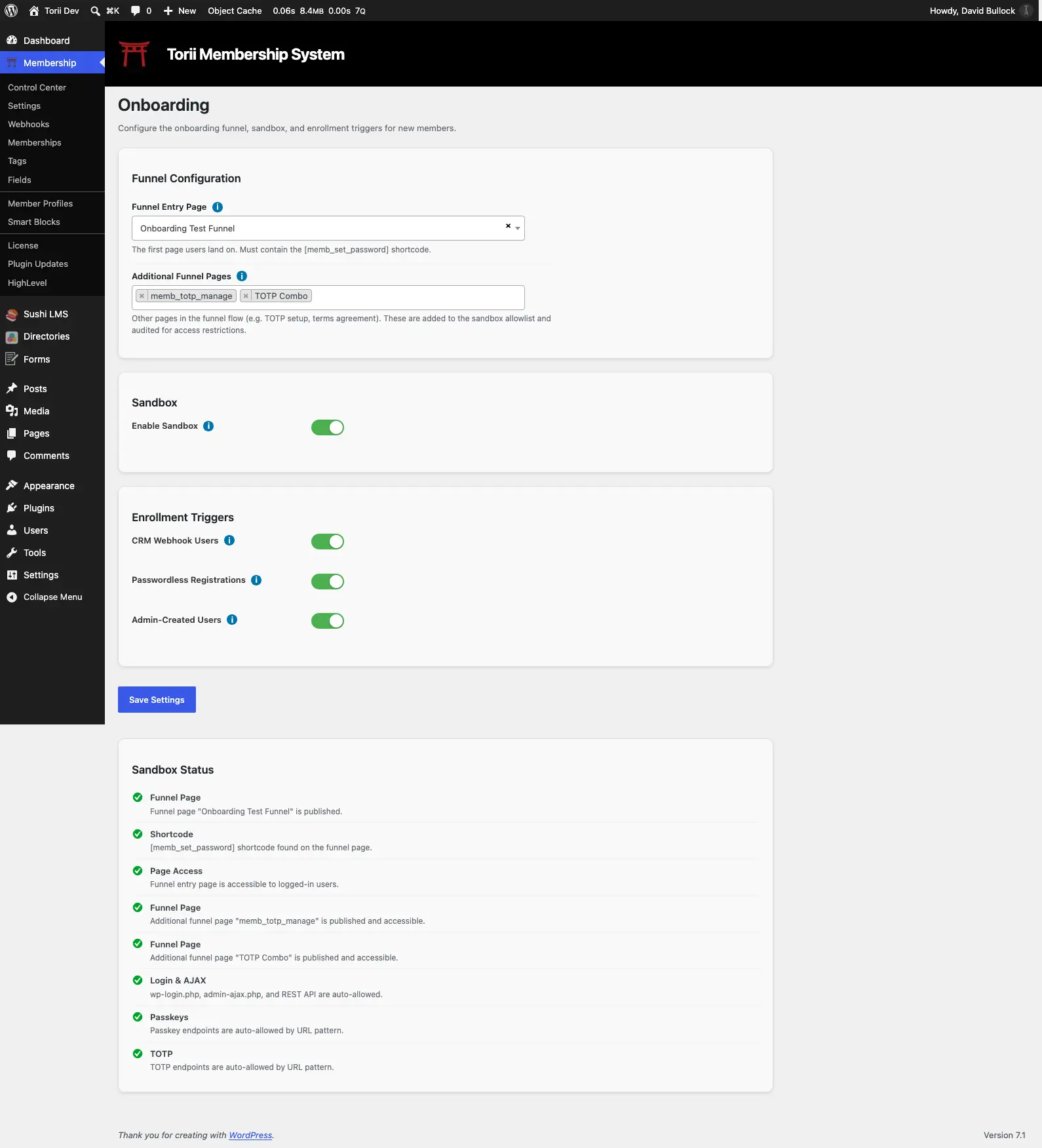
Then choose who gets onboarded. Three enrollment switches, and they match the three ways members come into a site:
- Members created by CRM webhook. Enable this if your CRM creates WordPress accounts (the provisioning guide flow). Every webhook-created member is flagged for onboarding, which is exactly what you want when magic links are doing the first login: the member clicks in, lands in the funnel, and picks a real password on the spot.
- Passwordless registrations. Enable when people register through Torii's own form without choosing a password. Members who do supply a password at registration are skipped; they finished setup by definition.
- Accounts you create by hand. Adds a "Require onboarding" checkbox (on by default) to the WordPress Users → Add New screen. Check it for members who should pick their own password; uncheck it for staff and internal accounts that don't need the funnel.
3. Add steps if you want them
The password gate is the one that ships enabled. Your funnel page can offer more around it: a terms acknowledgment, a welcome video, a passkey or TOTP setup. Anything that's another page in the journey goes into Extra Pages in the module settings, which adds those pages to the sandbox allowlist.
The same rules apply to every extra page: published, unprotected, part of the setup journey. A page that fails its checks blocks setup-needed members mid-funnel, and the status screen will show you which one.
For developers, gates are pluggable: each gate is a label, a completion flag, and the shortcode that renders it, registered through the wpal/torii/onboarding/gates filter. The password gate is just the first one; a gate can be anything with a definable "done."
4. Turn on the sandbox
The sandbox is what turns the funnel from a suggestion into a path. With it on, a member who still needs setup can't wander into the member area, the course library, or anywhere else: every URL that isn't a funnel page (or an auto-allowed endpoint like the login screen and admin-ajax) bounces them back to the funnel page until they finish. The bounce is silent from the member's side; they type a URL, hit enter, and land back on the funnel page.
Admins are never sandboxed, and the sandbox only activates when every status check passes, so a half-configured funnel can't lock anyone out.
5. What the member experiences
Run the movie end to end and you'll see how the pieces interlock:
- Your CRM creates the member by webhook and sends the welcome email with a magic link (Provisioning New Members, steps 1 through 3).
- The webhook also flagged them for onboarding.
- They click the magic link. Onboarding has swapped the link's destination: instead of the member dashboard, the click lands on your funnel page. Links generated before the flag existed get the same treatment at click time, so nobody slips through the gap.
- They set a password. The form walks them to a strong one, and the gate completes.
- All gates done, the flag clears, the sandbox lifts, and the redirect carries them into the site proper, signed in with their new password.
From their side: one click in an email, one password chosen, and they're in. From your side: no password emails, no "how do I log in" tickets, and no members who drifted in, saw a dashboard, and left.
Members who already have a password and account skip all of this; the funnel only intercepts the flagged.
6. Test it
- Fire your create-member webhook for a test contact (or add a user by hand with the onboarding box checked).
- Open the magic link, or log in manually. You should land on the funnel page, not the dashboard.
- Try to browse anywhere else. The sandbox should bounce you back.
- Set a password. You should be redirected onward, and every other page should now open.
- Check the user in the WordPress admin: the onboarding flag is cleared, and the enrollment reason (webhook, registration, or manual) is kept for audit.
If a member ever needs to escape the funnel early (a support case, a special arrangement), the admin can clear the onboarding flag from the user's profile without requiring the gates.
Where to go next
The password form's full behavior (strength scoring, the server-side check, the stay-logged-in guarantee) is on the [memb_set_password] page. When you're ready to make setup more than just a password, revisit step 3: terms pages, passkey enrollment, and profile fields all make good second gates, and the funnel records where members stall so you can see which step needs rewriting.