Member Profile
Every membership eventually produces the same support request: "something is wrong with this member." The Member Profile screen is where you look. It gathers everything Torii knows about one person, identity, access, activity, security, and CRM state, onto a single page, so you answer the question without hopping between screens.
The screen is admin-only. Members never see it; their own profile pages come from the Profile Builder module instead, and login credentials live in the WordPress user editor. This page is about managing members, not being one.
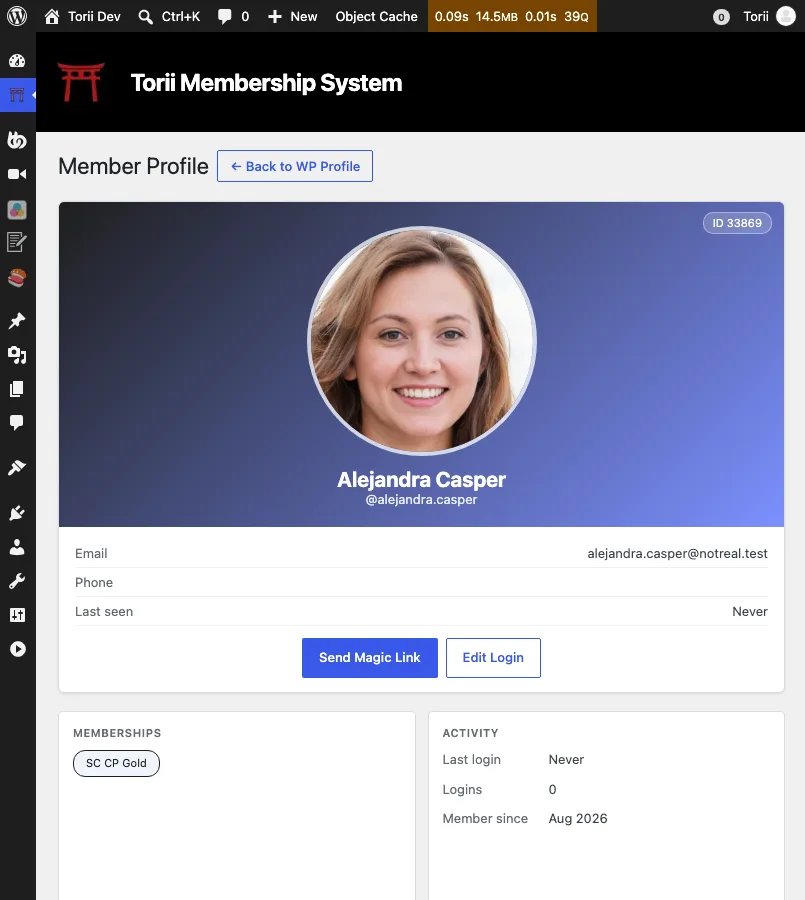
The exact panels you see depend on which modules are active on your site. The tour below covers the stock configuration; a site without the cohorts module, for example, simply has no cohorts card.
Getting there
The screen is deliberately absent from the admin menu. Three ways in:
- Users list. Hover a row under Users and click the Member Profile row action. This is the usual path when a support request names a person.
- Control Center. The Member Profiles card under Membership opens the member picker.
- WordPress profile. The user editor links back and forth with the Member Profile screen, since the two screens split the job between them: Torii data here, login credentials and roles there.
Both screens have a link to the other at the top.
The member picker
Open the screen without a member selected and you get the picker: a grid of member cards, one card per member, each showing their avatar, name, username, email, ID, tag count, last login, and first membership. Click a card to open that member's profile.
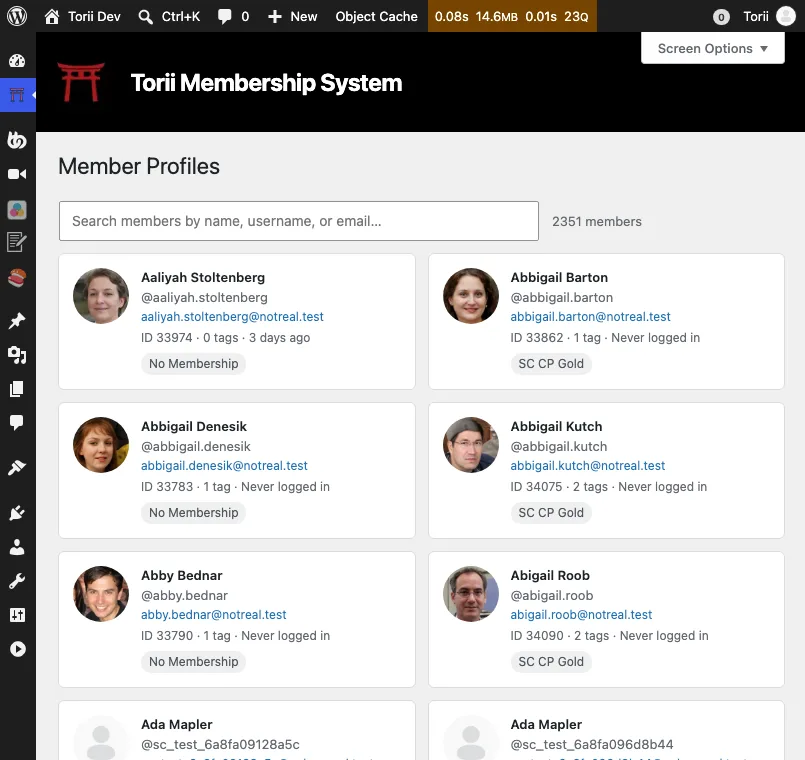
The search field filters live by name, username, or email. Administrators are excluded from the grid, since their accounts are not members. The number of cards per page is a Screen Options setting on the picker (hover Screen Options, top right); the default is 24.
Identity and status
The top of the page is the identity card: avatar, display name, username, user ID, email, phone (from the phone field), and when the member was last seen. Two actions sit under the contact rows:
- Send Magic Link emails the member a fresh one-time login link. The button is the quick answer to "I can't log in." For administrators this button is hidden; use Edit Login instead.
- Edit Login jumps to the WordPress user editor for password, email, and role changes.
Beside the identity card sit four tiles:
- Memberships lists the member's active memberships as pills.
- Activity shows last login, total logins, when they registered, and the IP of their last login with its geolocation when known.
- Security is a row of status dots: banned (only when the configured ban tag is present), onboarding state when the funnel applies to this member, 2FA enabled or off, passkey count, whether a password is set, and how many magic links exist. The manage link next to the heading jumps to the TOTP card further down the page.
- Links holds copy-ready member URLs: their dashboard (the login redirect target for their membership) and their RSS feed when one exists.
The CRM strip
Below the tiles, a full-width strip shows the member's CRM state: which CRM they're connected to, their contact ID, and when the record last synced. Sync Now pulls a fresh copy of the contact immediately, without waiting for the next background sync.
The strip appears only when a CRM is connected and the member isn't an administrator. On a site running without a CRM, the strip is absent and tags and fields are managed purely locally, which works fine.
Tags
The Tags card is where you change what a member can access. It's a multi-select over every local tag; pick the set the member should hold and save. Newly selected tags are applied, deselected tags are removed, and access rules follow immediately since tags drive access.
Removing a tag by hand is a local override: if the CRM still holds the tag, the next sync can bring it back. To change access for real, change it in the CRM or in the automation that granted it. The full story on local tags and mapping is in User Tags.
Memberships
The Memberships card is a read-only list of the member's active memberships. It's read-only because memberships are derived from tags: the member holds the access tag, so the membership is active. Change the tags (here or in the CRM) and the memberships follow. Tags & Memberships covers how the two relate.
Fields
The Fields card shows every user field and its value for this member. In display mode only filled fields are shown, with a count of empty ones below; click Edit to reveal the full form, empty fields included, and save your changes.
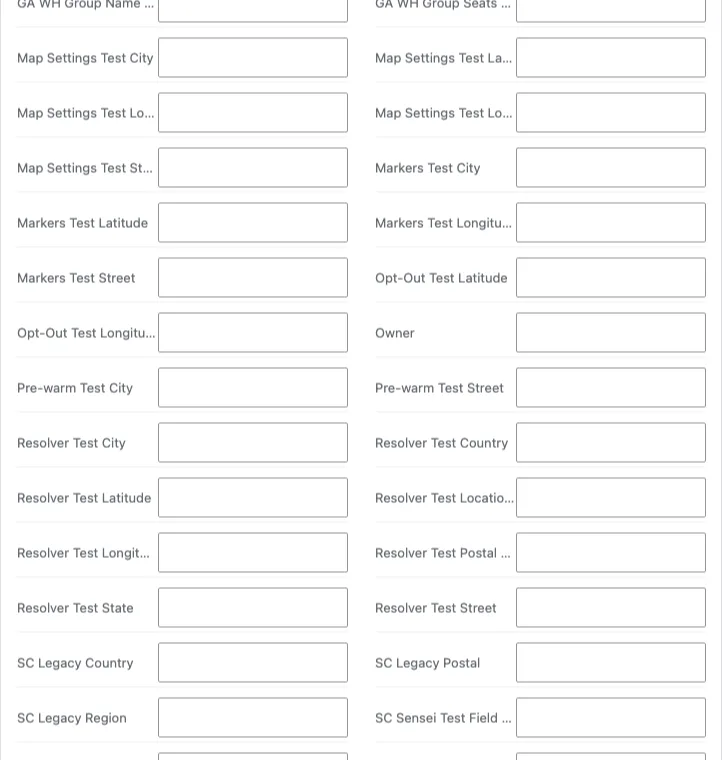
Saved values are written to the member's local record, and any field mapped to the CRM pushes there too. That makes the card a two-way street: a value you fix here lands in the CRM, and a value the CRM changes shows up here on the next sync.
Module cards
Below the fields, one card per active module, each summarizing that module's state for this member and linking to its own documentation:
- Magic Link generates a one-time login link on the spot, with a count of links generated so far. Links are shown only once; copy before leaving the page.
- Cohorts lists the member's cohort assignments with course, start date, and cohort size. (Cohorts)
- Onboarding shows funnel status with a per-gate checklist when the onboarding funnel applies to this member, including the control that releases them early. (Onboarding)
- TOTP shows 2FA status, last use, and remaining recovery codes, with a delete control for starting a locked-out member over. (Two-Factor Auth)
- Passkeys lists the member's registered passkeys. (Passkeys)
- Credits shows the member's credit balance and history. (Credits)
- Group Accounts shows team memberships and roles. (Group Accounts)
- Directories shows the directories the member appears in and their privacy choices. (Directory Privacy)
Cards for inactive modules don't render, and viewing an administrator hides the membership-driven cards, since administrators aren't members.
Common tasks
Reset a locked-out member. Check the Security tile: is 2FA on, is a password set? If TOTP is the problem, use the TOTP card's delete control and let them enroll again. If they just can't get in, Send Magic Link or generate one from the Magic Link card.
See why a member can't reach content. The Memberships tile and Tags card tell you what access they hold; compare against what the content requires. The CRM strip tells you whether their tags might be stale (a long-ago sync is a hint to press Sync Now).
Release a member from onboarding. Open the Onboarding card and clear the funnel flag; the gates no longer apply. Details in The Onboarding Sandbox.
Fix bad member data. Use the Fields card, edit, save. Mapped fields reach the CRM on save; unmapped ones stay local.
Check a member's recent activity. The Activity tile: last login, login count, member since, and last IP. Deeper login history lives in the login error log and page views log.