[memb_totp_setup]
Description
Guides the member through TOTP enrollment:
- Generates (or regenerates) a secret, stores it encrypted, and
renders the
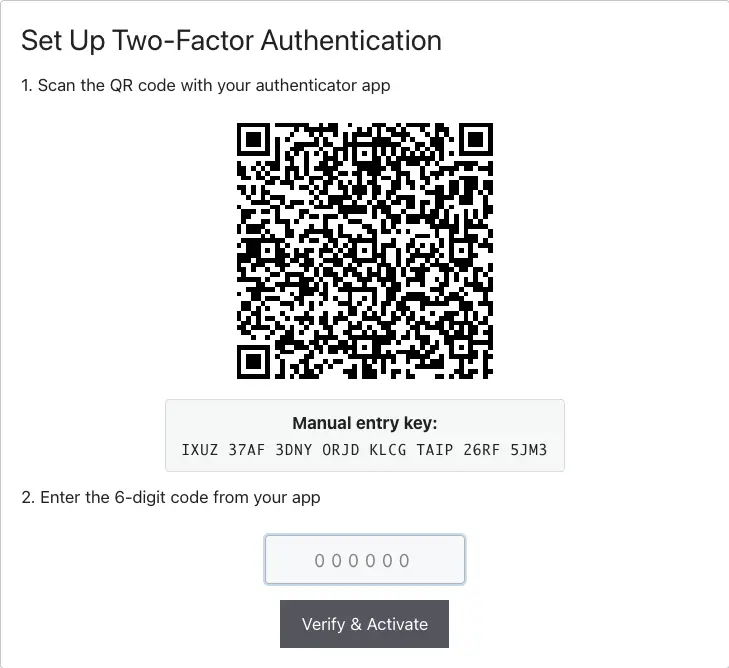
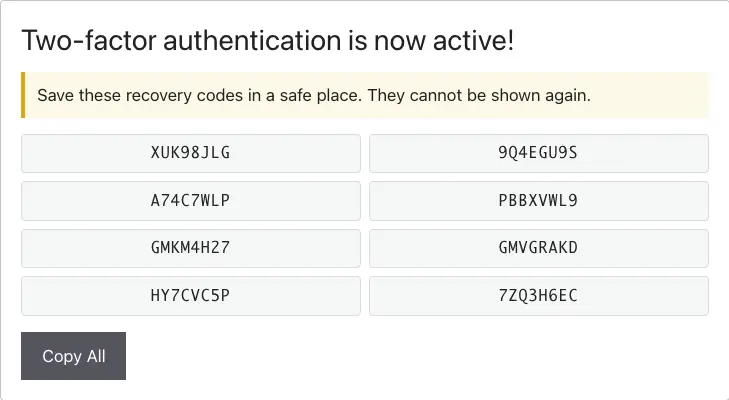
otpauth://URI as a QR code plus a manual entry key. - On POST with the setup nonce, verifies the first 6-digit code. Success marks the user verified and enabled, generates recovery codes, and displays them once with a copy button.
- Failure re-renders the form with an inline error.
Users who are already enrolled see an "already active" message, with
a link when manage_url is provided. When the master encryption key
is unavailable, an apologetic unavailable notice renders instead;
enrollment is disabled rather than insecure.
Logged-out users see nothing.
The HTML this shortcode renders comes from a template you can override in your theme. See Shortcode Templates.
Screens
The enrollment form, as members see it:
Only after the first code verifies, recovery codes are shown once. This is to prevent 2FA from being enabled without the authenticator being verified, so users don't lock themselves out:
Shortcode Examples
[memb_totp_setup]With a link to the management page after enrollment:
[memb_totp_setup manage_url="/account/security/"]Shortcode Parameters
manage_url
URL of the page holding [memb_totp_manage]. A member who is already
enrolled sees an "already active" message instead of the QR form;
manage_url turns that dead end into a link, so they can go disable
2FA, regenerate recovery codes, or re-pair a new phone. Set it to
wherever your manage shortcode lives, typically the same "Security
Settings" page as the setup form. Without it, the message has no link
and the member has to find the manage page themselves. Default: ''
(no link).
Shortcode Attributes
| Attribute | Value |
|---|---|
| Conditional | No |
| Nestable | No |
| Accepts formatting | No |