Certificates
When a member completes a course that has certificates enabled, the module issues one automatically: a unique serial number, a private record in the database, and a public page anyone with the link can view. What the certificate looks like is up to you; templates are designed on a canvas in the admin and can carry any text, layout, and variables you want.
Enabling and issuing
Two settings control issuance, both on the course: the Issue Certificate toggle and, optionally, which template to use. When the last requirement completes, the final lesson or the attached course quiz, the certificate is issued on the spot. Nothing is queued and nothing runs on a schedule.
Each certificate gets:
- A 32-character hash that forms its public URL
- A serial number in the pattern
SLMS-2026-0001, unique per year, filterable by developers - A snapshot of the member and course details at issue time, so later edits to the course or the member's name never rewrite history
Reissuing never happens by accident. Complete the course twice and you still hold one certificate.
Designing a template
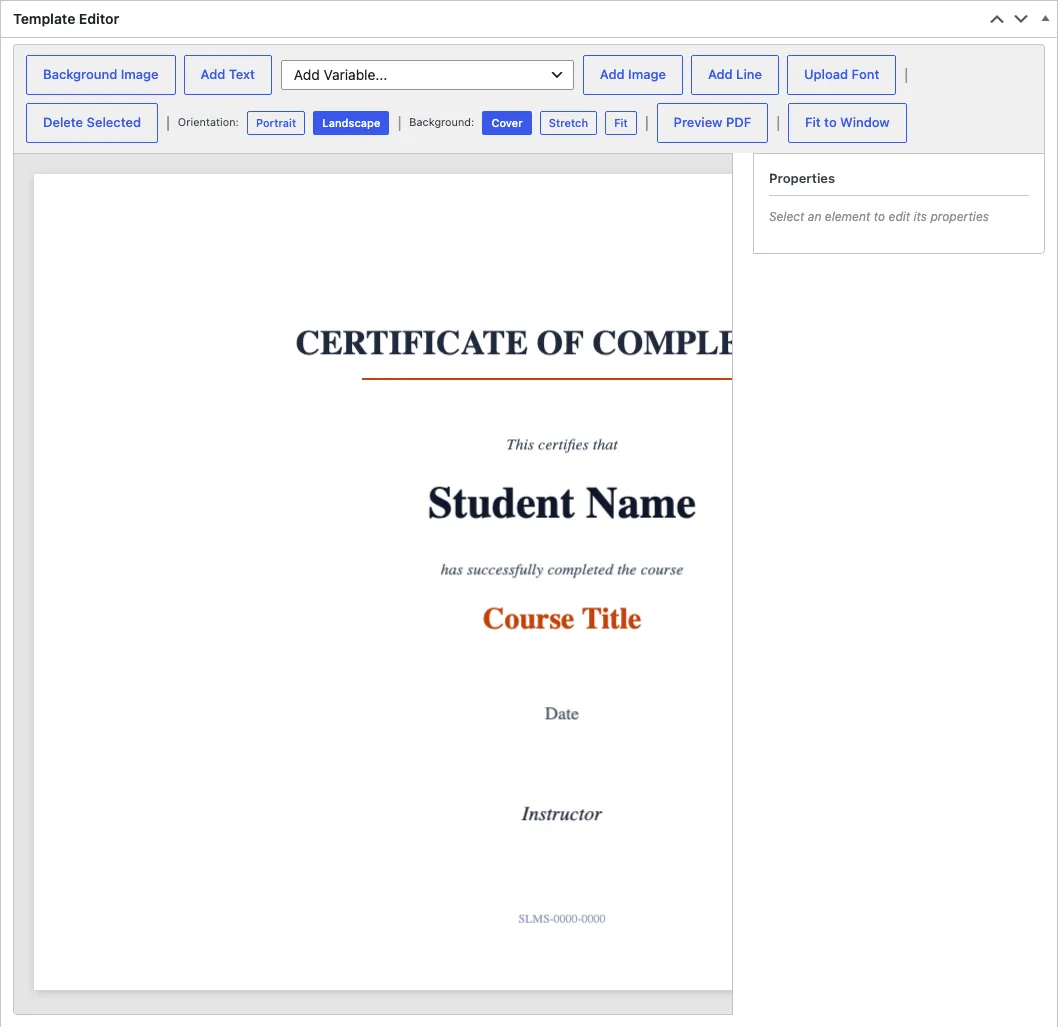
Templates live under Sushi LMS > Templates. The editor is a canvas with drag-and-drop elements. Add text and separator lines, position them anywhere, and style them with size, weight, color, and alignment. Upload a background image and choose how it fills the page: cover, stretch, or fit. Fonts are TTF files you upload once and reuse across templates.
Text elements come in two kinds. Static text prints the same thing on every certificate: the organization name, a title like "Certificate of Completion". Variable text pulls a value from the issued certificate's snapshot. The available variables:
student_name,student_first_name,student_last_name,student_emailcourse_titleandcompletion_dateinstructor_nameorg_name, your site namecertificate_id,certificate_serial, andverification_hash
A course can name its template explicitly. When it does not, the module falls back to the default template you pick in the module settings, and failing that, the newest published template. Publish a template before pointing a course at it; a draft template is invisible to the fallback chain.
The public certificate page
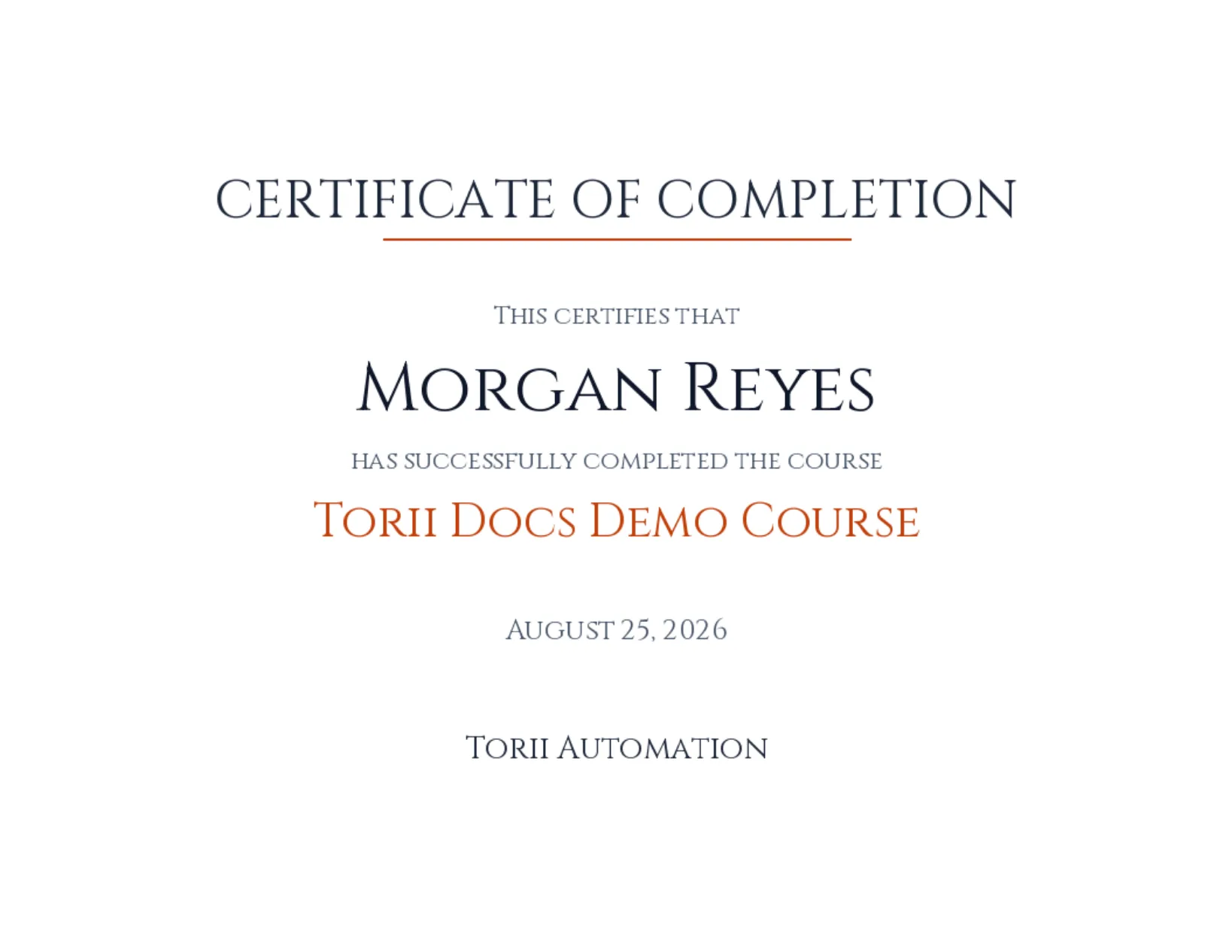
Every certificate has a public URL: {courses base}/certificate/{hash}/. No login is required, which is the point: members share the link on a resume or a LinkedIn profile and the recipient can see it. The page shows the rendered certificate image plus a Download PDF button.
Certificates render with the GD library, which most hosts provide; a pure HTML and CSS renderer is the fallback when GD's font functions are missing, so certificates work on any host, they just render in the browser instead of as a fixed image. PDFs are generated from the rendered PNG with a native builder.
Rendered images and PDFs are cached as attachments so repeat visits do not re-render them. By default those attachments are hidden from the Media Library so cert files do not clutter it; a toggle in the module settings shows them if you want to manage them there. The Certificates admin screen lists every issued certificate with a regenerate action that discards the cached files and re-renders from the current template, which is how you change the design after certificates exist.
Verification
The [memb_lms_verify_certificate] shortcode puts a verification form on any page. A visitor enters a certificate's hash or serial number and the form confirms whether it exists and who it belongs to. The form also accepts ?cert_hash= or ?cert_serial= in the URL, so you can link straight to a prefilled verification result.
Verification answers one question: is this serial real and who earned it. It shows the student name, course, completion date, and optionally the instructor and organization, all from the snapshot taken at issue time.