Drip and Prerequisites
Left alone, every lesson in a published course is available the moment a member enrolls. Most courses work that way. When you want to pace a cohort, prevent skipping, or gate one course behind another, three mechanisms do the work: drip schedules, sequential progression, and prerequisites. They stack, and a lesson locked by any one of them stays locked.
Drip schedules
Drip is set per lesson, in the Drip Schedule section of the lesson edit screen. Three options:
- None is the default. The lesson is available as soon as the member has access to the course.
- Days after enrollment unlocks the lesson a fixed number of days after that member enrolled. Each member's clock is personal: two members who enrolled a week apart unlock the lesson a week apart.
- Calendar date unlocks the lesson on a fixed date for everyone at once.
Drip locks are enforced when the lesson is accessed, not on a schedule. Nothing changes in the database on unlock day; the lesson simply stops redirecting. That means you can shorten a drip schedule on the fly and members see the new timing immediately, and moving a calendar date earlier works the same way.
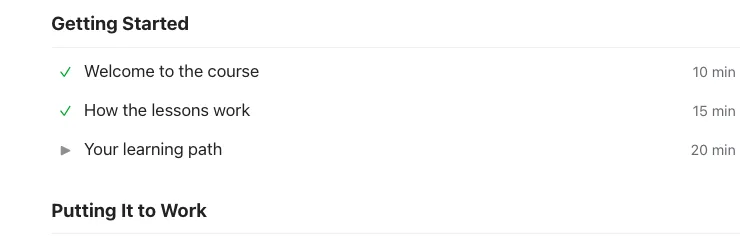
A drip-locked lesson still appears in the course outline, but its title is not a link. The outline shows the unlock date in its place, so members can see what is coming and when. Locked lessons do not count against progress until they unlock and are completed.
Members without an enrollment record cannot use days-after-enrollment at all: with no enrollment date there is nothing to count from, so the lesson stays locked. Calendar dates still apply to them.
Sequential progression
The Sequential Progression toggle on the course settings box locks each lesson until the previous lesson in the course is complete. The chain runs through the whole course in delivery order: the last lesson of module one holds the first lesson of module two, and lessons attached directly to the course fall in line after the module lessons. One continuous path, so a member cannot skip ahead anywhere.
The lock checks the immediately preceding lesson's completion, and the order is the same one the Course Builder and the lesson prev/next navigation use, so what members see as "next" is exactly what unlocks next. Anyone who can edit the lesson, such as administrators and the course instructor, bypasses all locks when previewing.
Prerequisites
Two separate settings share the name:
Prerequisite courses live on the course settings box. A member cannot enroll in the course until they have completed every course on the list, whether by finishing the last lesson or by passing the attached quiz. The enrollment button shows the unfinished prerequisites by name so members are not guessing. Admin-side manual enrollment skips the check, which is what you want when supporting a member who actually has the background.
Prerequisite lessons live on the lesson edit screen. The lesson stays inaccessible until each listed lesson is complete. The list offers the lessons around it: same-module siblings, plus lessons attached directly to the course, or the other course-level lessons if the lesson itself is course-level.
There is also an auto-enroll convenience on the course settings box: enroll the member automatically the moment their prerequisite courses are all complete, so a member finishing course one lands in course two without an extra click.
What locks look like to a member
Locked lessons redirect rather than show a wall. A drip-locked or sequential-locked lesson sends the member back to the course page, and an unenrolled member attempting a lesson is asked to log in or sent to the course. The outline is where members see the state of everything: completed lessons have a check, in-progress lessons show their state, and locked lessons show their unlock date.
For code that needs the same answers, every check described here is also a filter: can_access/course, can_access/module, and can_access/lesson let you add or relax locks of your own.