Enrollment and Access
Two different things decide whether a member can take a course, and mixing them up is the most common source of "why can't they see it" questions. Access is about seeing: your membership tags gate course content the same way they gate any protected page. Enrollment is about participating: a record that this member is taking this course, which progress, quizzes, and certificates attach to.
A member needs both. Access without enrollment sees the course but cannot make progress in it; the enrollment button is how they opt in. Enrollment without access holds their place but the content stays hidden until the tags allow it.
The four ways members enroll
Self-enroll with the button. The [memb_lms_enrollment_button] shortcode renders a status-aware button on the course page: enroll when they have access but no enrollment, continue when enrolled, and a list of unfinished prerequisite courses when prerequisites block enrollment. The button handles the whole flow without a page reload.
Auto-enroll by tag. Set Auto-Enroll Tags on the course and membership does the work: a member who gains any of those tags is enrolled, and a member whose matching tags all disappear is unenrolled. Only published courses take part, and administrators are never auto-enrolled or auto-removed, so staff accounts are safe. This is the pattern for purchase-to-course flows: the checkout applies the tag, the tag enrolls the member.
Manual enrollment from the admin. Sushi LMS > Enrollments has an Enroll User form: search for the member, pick the course, enroll. Manual enrollment skips prerequisite checks, which is what you want when a support request says "they already know this material."
Prerequisite auto-enroll. With the prerequisite auto-enroll toggle on, a member who completes all prerequisite courses is enrolled in this course immediately, with no button click in between.
The Cohorts module adds a fifth path for group-based programs: adding a member to a cohort enrolls them in the cohort's course on the cohort's schedule.
Managing enrollments
The Enrollments screen lists every enrollment with the member, course, status, and dates, filterable by course and status, and exportable to CSV.
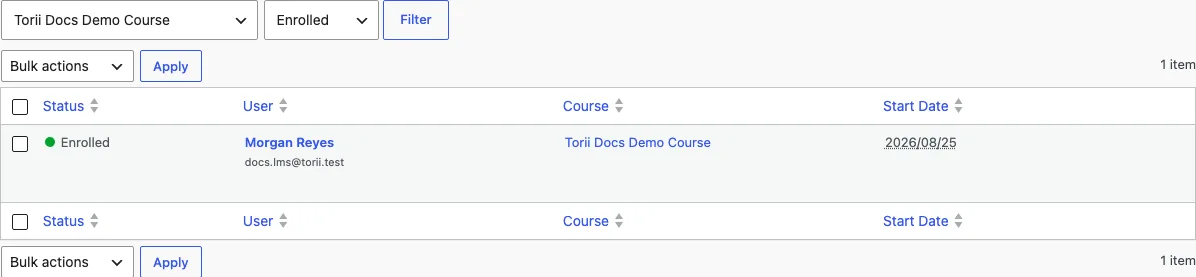
Three statuses describe an enrollment:
- Enrolled is the working state: progress records, quiz attempts, certificates.
- Suspended pauses the member without deleting anything. The enrollment row stays, but the member is treated as not enrolled until you restore them. Use it for payment pauses and conduct holds.
- Unenrolled ends the enrollment. Progress is kept, not deleted, so if the member returns they resume where they stopped rather than starting over.
Bulk actions on the list change status for any number of rows at once, which is how you suspend a graduating cohort or reinstate a payment batch after a failed import.
What unenrollment does not do
Unenrolling, by any path, does not wipe the member's history. Lessons completed, quiz attempts, and issued certificates remain, and re-enrolling picks the record back up. If you want a truly clean slate for a member, remove the data from their profile in the admin, not by unenrolling and hoping.
Unenrollment also does not revoke access by itself. Access follows tags; if the member still holds the tags that protect the course pages, they can still read the course, they just cannot progress in it. When the goal is to remove a member from a course entirely, remove the tag and unenroll together.