Magic Links
A magic link is a URL that logs the member in when they click it. You email it from your CRM, they click, they're in. For first-time access after a purchase or registration it beats everything else: no password to invent, no reset email three days later, no "I never got my login" ticket.
There are two ways to use them, and they solve different problems:
- Automated, from HighLevel. The link is generated when the member is created, stored in a HighLevel custom field, and dropped into your welcome email by an automation. This is the recommended path for a member's first login.
- Self-service, with a shortcode. Place
[memb_request_magic_link]on any page and existing members can enter their email and get a link on demand. That's your ongoing passwordless login option.
Configuration
Under Membership Settings → Magic Links:
- Enable Auto Generate for New Users.
- Set a Default Redirect. A specific page works, or enter
~to send the member to the dashboard configured for their membership level.~is usually what you want. - Decide between single-use links (expire the moment they're used) or a time window (default: one day). Either is fine; single-use is the stricter choice.
- If settings seem to be missing, scroll down and turn on Advanced Mode.
Then one more, under Membership → HighLevel: the Magic Link Sync Field. This is the custom field where generated links get written so your automations can reach them.
Create the field in HighLevel
In HighLevel, go to Settings → Custom Fields and create a new single-line text field named something like "Magic Link" on the Contact object. Which section it sits in is up to you. Back in Torii, set that field as the Magic Link Sync Field.
The welcome automation
The sequence in your HighLevel automation matters, so here it is in order:
- Fire the Create Member webhook. This creates the account and generates the magic link.
- Add a Wait step of at least one minute.
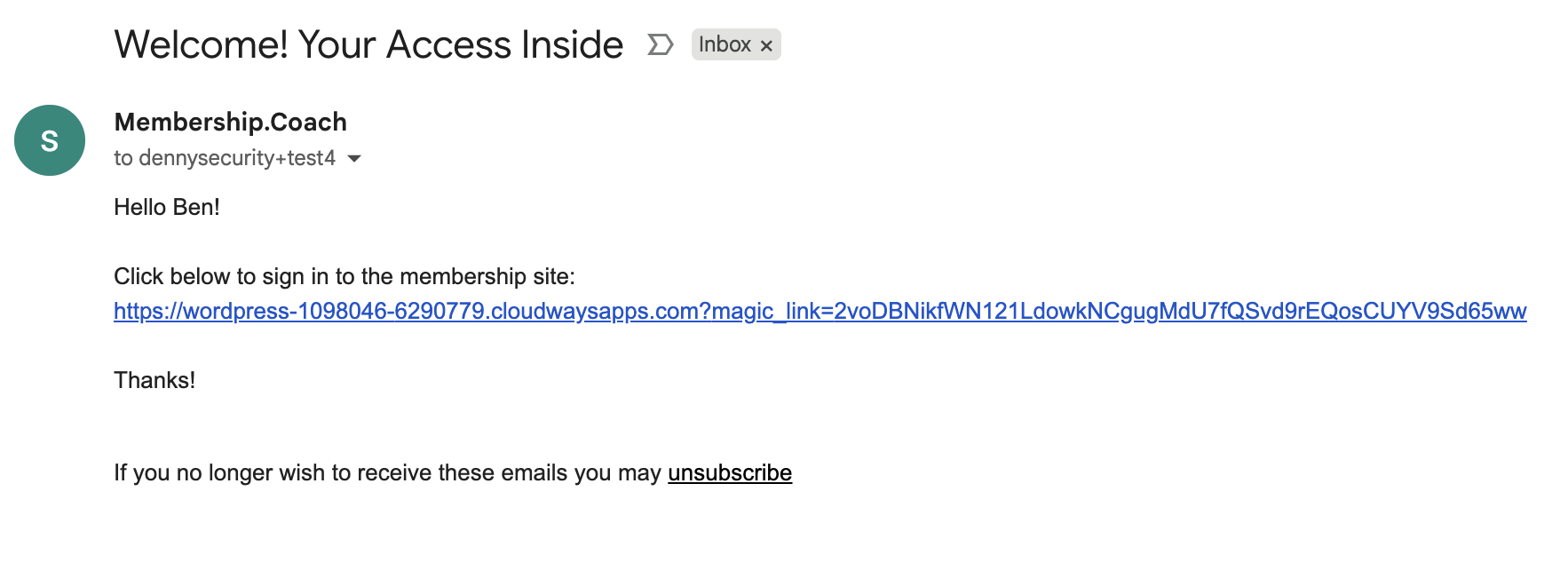
- Send the email. Merge the Magic Link custom field into the body as the sign-in button or link.
An example of the finished email, sent from HighLevel:
Test it end to end
Create a contact in HighLevel, add them to the automation manually, and wait the minute. Open the email, click the link in a private browser window, and confirm you land on the member dashboard signed in. While you're in HighLevel, check the contact record: the magic link should be sitting in the custom field.
The shortcode path
For everyone who's already a member, put [memb_request_magic_link] on a page. They enter their email, get a link, click it, and they're in. It doubles as a password reset: members who can't get in just request a link and change their password once they're inside. See the shortcode reference for parameters.
The two paths work together rather than competing: automation handles the first login, the shortcode handles every login after that for anyone who'd rather not remember a password.