TOTP
Time-based one-time passwords for two-factor login. A member pairs an authenticator app once, then each login needs the rotating code along with their password.
Two-factor authentication is table stakes for admin accounts, and members with money on the line deserve the same protection: course buyers, community members, anyone whose account is a target for resale or hijacking. TOTP is the industry-standard second factor: a six-digit code from an authenticator app that changes every 30 seconds. It works with every authenticator on the market, from Google Authenticator to 1Password to a YubiKey's companion app, and it needs no phone number, no SMS gateway, and no per-message fees.
Setup is a QR code. The member visits [memb_totp_setup], scans the code with their app, and confirms one generated code to prove the pairing took. From then on, login asks for the password and the current code. [memb_totp_verify] and [memb_totp_manage] round out the flow for verifying codes in custom login forms and for removing or re-pairing a device.
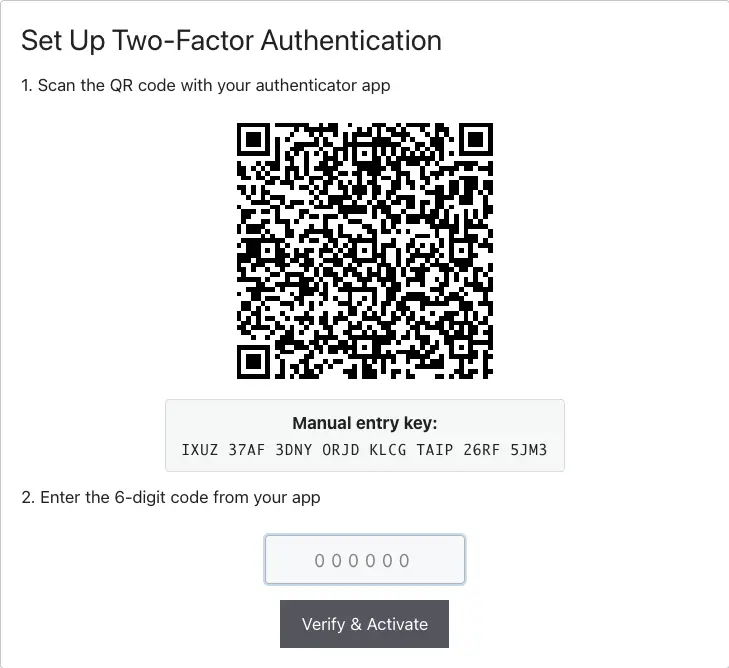
Recovery is a scratch code generated at pairing time. A member who loses their phone uses the code once to get in, then pairs the new phone. Members who never opt in are unaffected: TOTP is per member, so it hardens the accounts that need it without forcing it on a casual visitor.
Admin screens
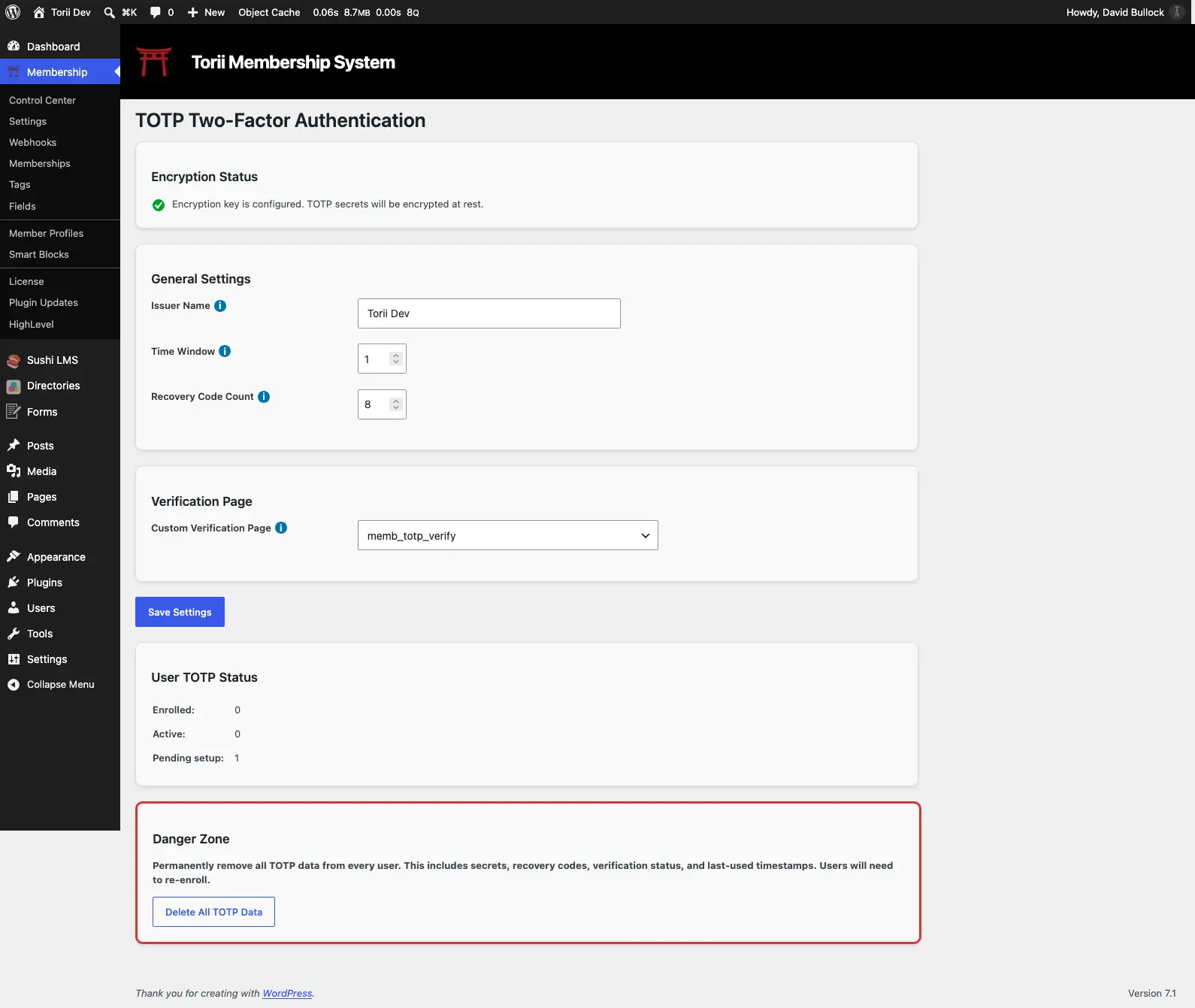
The module's settings live at Membership → TOTP 2FA (or via the TOTP card on the Control Center). The issuer name, time window, and recovery-code count are described in Setting Up Login Security; the screen also shows enrollment counts and a delete-all control for clearing every member's TOTP data at once. The Enforcement card on the same screen requires two-factor for the roles you choose, with a grace period for each member: see 2FA Enforcement.
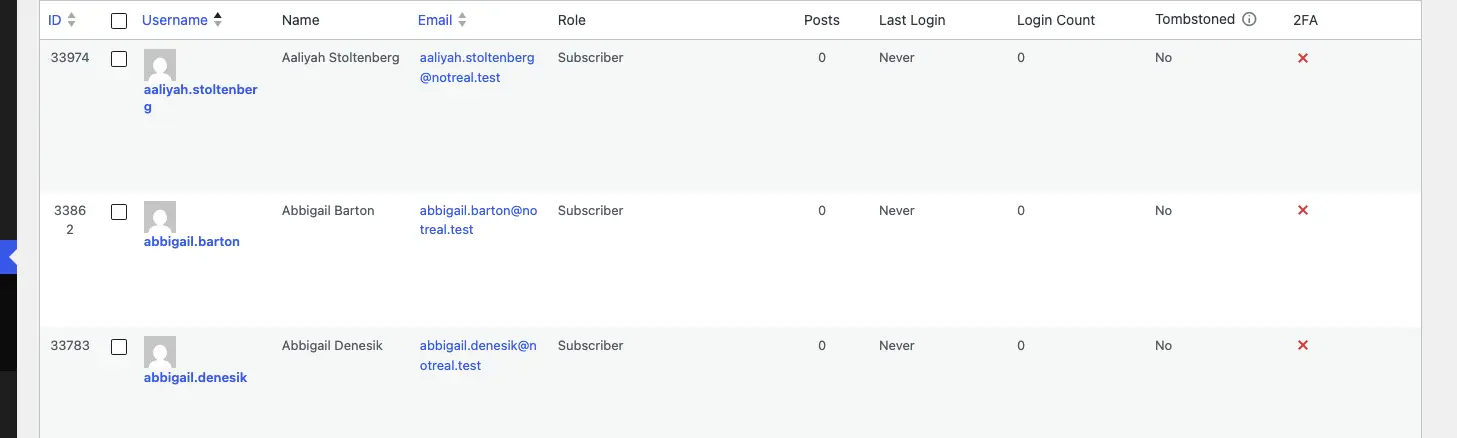
Two admin views show you where enrollment stands without opening anyone's profile. The Users list has a 2FA column with a green or red icon per account:
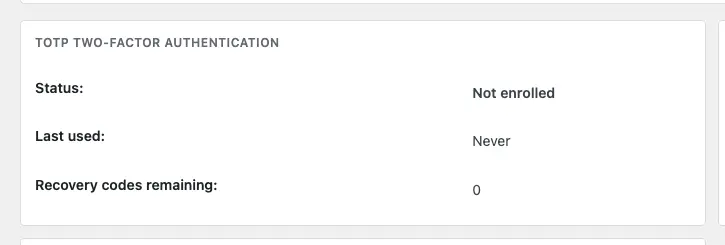
And each member's Member Profile screen has a TOTP section with status, last-used time, and remaining recovery codes, plus a Delete TOTP Setup button for helping a locked-out member start over:
Articles
Shortcodes
| Shortcode | What it does |
|---|---|
| [memb_totp_manage] | Renders the two-factor authentication management panel: status, usage, disable, and recovery-code regeneration. |
| [memb_totp_setup] | Renders the two-factor authentication enrollment flow: QR code scanning and first-code verification. |
| [memb_totp_verify] | Renders the two-factor verification form shown after password login for TOTP-enabled accounts. |